How to Integrate Shopify with GoHighLevel in 2026 When Shopify No Longer Provides Admin API Tokens
If you are integrating GoHighLevel with Shopify, you will quickly run into a major roadblock:
GoHighLevel requires an Admin API Access Token, but Shopify no longer displays or generates this token directly when creating new apps.
Inside GoHighLevel, the Shopify integration asks for an Admin API Access Token.
However, in Shopify’s new 2026 app system, when you create an app in the Shopify Dev Dashboard, Shopify only provides:
-
Client ID
-
Client Secret
It does NOT provide the Admin API Access Token anymore.
This creates confusion because many older tutorials still reference the legacy token system that Shopify has effectively deprecated.
The new reality
To obtain the Admin API Access Token required by GoHighLevel, you must:
-
Create the app in the Shopify Dev Dashboard
-
Configure API scopes correctly
-
Install the app on your store
-
Use the Client ID and Client Secret to generate a token via the OAuth Client Credentials Grant
-
Send a POST request to Shopify’s API (for example using Postman) to generate the actual access token
-
Use that generated token inside GoHighLevel
This guide walks through the exact real world process to solve this problem, based on Shopify’s latest platform changes and a working integration setup.
By the end of this tutorial, you will be able to:
-
Generate a valid Shopify Admin API Access Token
-
Avoid common installation and scope errors
-
Connect Shopify to GoHighLevel successfully
-
Understand why Shopify no longer exposes tokens directly
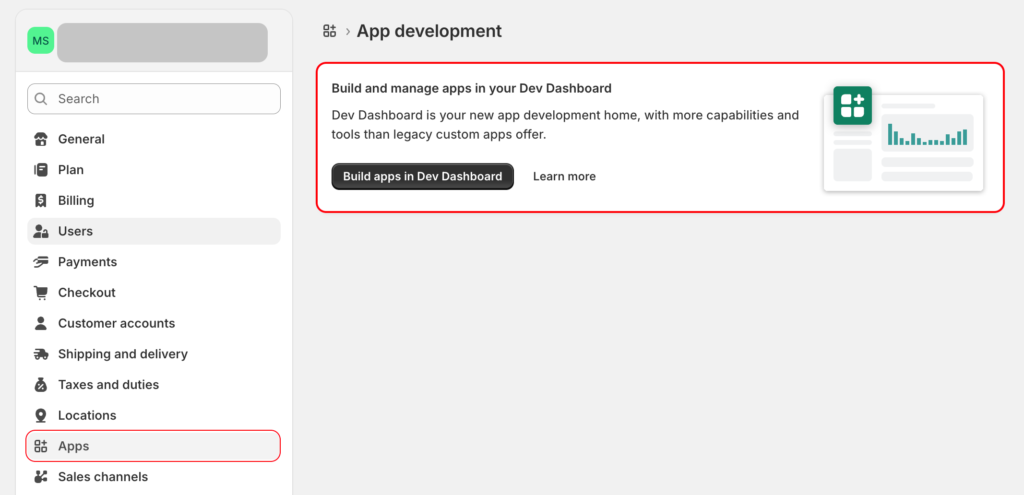
Step 1: Create an App in Shopify Dev Dashboard
-
Open Shopify Dev Dashboard
-
Navigate to Apps → Create App
-
Create a Public App or Organization App
Step 2: Configure App Version Settings
Embedded App
You may leave Embedded = True if needed.
Legacy Install Flow
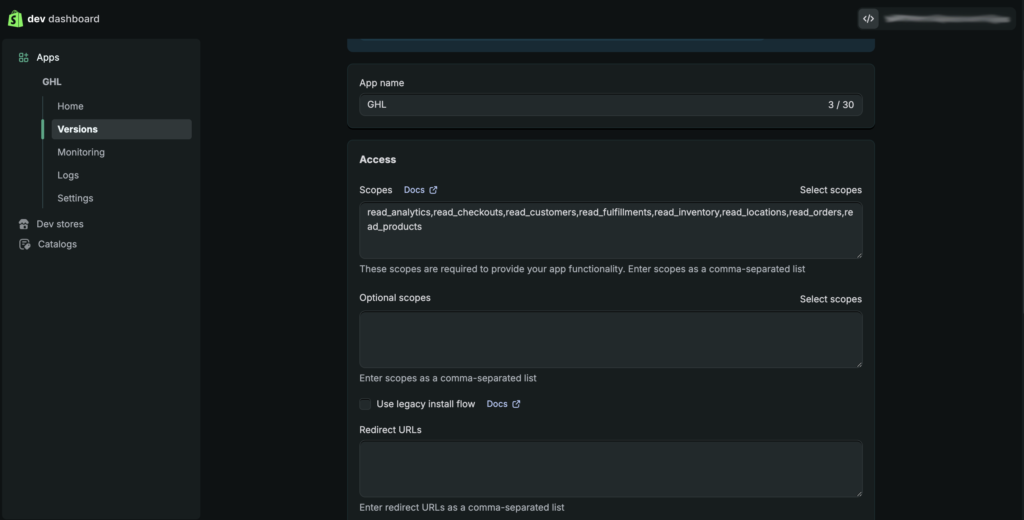
Disable Legacy Install Flow
This step is critical. Keeping Legacy Install enabled can block installation and prevent permission consent.
Step 3: Configure Admin API Scopes
Paste the scopes in one single line, comma separated:
read_products,read_orders,read_customers,read_inventory,read_checkouts,read_fulfillments,read_locations,read_analytics
These scopes allow read access to Shopify store data required by GoHighLevel.
Step 4: Set a Valid App URL
Enter a valid HTTPS URL, for example:
https://yourdomain.com
Avoid placeholder or fake URLs, as Shopify may block installation.
Step 5: Release the App Version
Click:
Save
Release version
Step 6: Install the App on the Store
From Dev Dashboard:
-
Click Install app
-
Select the store
-
Approve requested permissions
Installation is required for scopes to take effect.
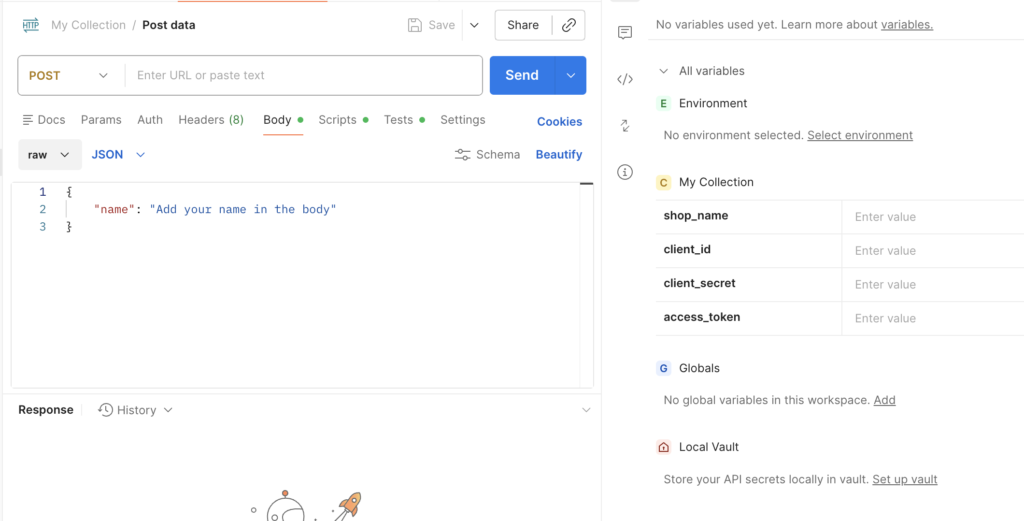
Step 7: Generate Shopify Access Token Using Postman
The Admin API token is not visible in Shopify UI.
You must generate it via API or Postman.
Endpoint
POST https://YOUR_STORE.myshopify.com/admin/oauth/access_token
Request Body (x-www-form-urlencoded)
					grant_type=client_credentials
client_id=YOUR_CLIENT_ID
client_secret=YOUR_CLIENT_SECRET
Expected Response
					{
  "access_token": "...",
  "scope": "read_products,read_orders,...",
  "expires_in": 86399
}
Important:
The
scopefield must NOT be emptyCopy only the
access_tokenvalue
Step 8: Connect Shopify to GoHighLevel
Inside GoHighLevel Shopify integration panel:
Admin API Access Token
Paste the generated access_token
Shopify Store Name
Enter only the Shopify subdomain, for example:
your-store-name
Step 9: Token Expiration Notice
Access tokens generated via Client Credentials Grant:
-
Expire after 24 hours
-
Must be regenerated periodically
-
Should ideally be refreshed automatically in production
Common Errors and How to Fix Them
Token returns empty scope
Cause: App was not reinstalled after scope update
Fix: Uninstall and reinstall the app
Missing required scopes error in GoHighLevel
Cause: Token does not include necessary permissions
Fix: Update scopes and regenerate token
App fails to install
Common causes:
-
Legacy Install Flow enabled
-
Invalid App URL
-
Browser cookie or popup blocking
Fix:
-
Disable Legacy Install Flow
-
Use a valid HTTPS URL
-
Retry installation in Chrome Incognito mode
Conclusion
Shopify’s 2026 platform update requires a modern OAuth based authentication flow.
By using Client Credentials Grant, developers can securely generate API tokens and connect Shopify to GoHighLevel without relying on deprecated legacy token systems.
Although the process is more technical, following this guide ensures a stable and future proof integration.